
Hard disk drives
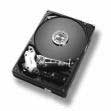 Hard drive basics
All of these terms ...
- Hard disk
- Hard drive
- Hard disc drive
- Fixed hard drive
- Internal hard drive
... refer to the high capacity, high speed, magnetic storage device installed in all laptop and desktop personal computer systems.
Hard disc drives are used by computer systems as "long term" storage devices. Hard drives have vastly larger capacities than RAM ("short term working memory") but are not as fast at accessing data.
Hard disc drives read and write data faster than any computer storage device (floppy, optical, tape etc). They have large storage capacities but data must be backed up to a second hard drive or removable optical discs when the disc becomes full or unreliable.
The Operating System, Programs and Data will be stored and loaded from the hard drive. Computers always have at least 1 internal drive, but others may be installed internally, or connected externally using eSATA, USB, SCSI or FireWire cables.
An external hard drive is identical to an internal one except it sits in a case with a power supply and interface which connects to a port (usually eSata, FireWire, SCSI or USB) on your computer.
Hard drive specifications
Hard drive specifications normally comprise the following ...
- Capacity Measured in Gigabytes. Typical drive capacities are 60-80Gb but it is now (Nove 2004) possible to purchase 500-800Gb drives. Average capacities continue to increase every month.
- Interconnection FireWire, SCSI or USB
- RPM (revolutions per minute) The speed at which the disk spins has an impact on how quickly data can be stored and retrieved. eg 7200rpm is essential for audio and video applications.
- Seek / access time How long it takes the read/write head to find the data it has been instructed to read or the location of free space required to save a file
- Sustained data transfer rate How much data the drive can continually transfer without faltering
How does it work?
We can get very technical here but an average user only need to know a few things ...
Magnetic disk
Hard drives have one or more magnetic disks (also called platters)
Magnetic pulses
The disks (platters) store data magnetically as a series of pulses representing 1s and 0s.
Read / write head
Hard drives have an arm/head device which moves over the surface of a drive a bit like a record player arm, except it doesn't and mustn't actually touch the surface.
Formatting (Initialising)
Hard drives must be formatted before use. Formatting puts a preliminary filing system (file directory or FAT) on the disk appropriate to the operating system being used (typically Windows or Mac OS) and arranges the surface into a series of sectors and tracks. NOTE: You don't need to understand sectors and tracks to use a computer.
FAT / file directory
The location of files on the surface of the disk is stored in a separate Disk Directory "file" called a File Allocation Table or FAT.
The FAT keeps a record of all the tracks and sectors on a disc and what files are stored in them. When you save a file, it is stored in the first available unused space and if that space isn't big enough the rest of the file will be stored in the next available space.
NOTE: When you delete a file (empty the Recycle bin or Trash), the file's directory entry is deleted but the file is not actually erased from the drive. To complete remove the file you must format or initialise the disk.
Partitions
Sometimes it is desirable to divide a single hard drive into 2 or more partitions, a process called partitioning. Unlike sectors and tracks, the data that comprises a single file cannot be spread across separate partitions. System files and Applications may be installed on one partition and data on another. This ensures files are kept from "intermingling", a process which can increase the chances of directory and data corruption. System or Manufacturer Disk Utility programs (Lacie have one called Silverlining) can partition your drive.
What can go wrong?
The hard disk is the most mechanically active component of a system, almost constantly spinning around and saving and retrieving data, writing and re-writing system and cache files and generally keeping track of all the stuff you are doing. It is therefore highly susceptible to ...
- Losing the location of files it has stored (FAT / File directory corruption)
- Losing track of which users have access to what files (Called "Permissions" on Mac multi-user systems)
- Data corruption as the result of loss of power, exposure to extremes of temperature, humidity or magnetic fields from a TV or speaker etc
- Loss of performance & speed due to fragmentation of the disk
- Catastrophic mechanical failure (goodbye data!) usually as a result of the read/write head touching the disk.
| Symptom | Cure |
|---|---|
| File missing. File icon missing. File has error when opening. |
Try copying the file. Repair the disk directory (FAT). |
| Can't save or over-write a file. | Re-set access privileges for current user account. Repair user account permissions. |
| Slow hard drive read/write performance. Audio and video files stutter during playback. |
Back-up data. De-fragment the hard drive. |
| Computer won't start-up. Computer freezes. Even when booted from a start-up disk, hard drive is not available. |
Back-up data if possible. Re-initialise (format) the hard drive. |
Maintenance
Hard drives are air-tight sealed at manufacture. There is no physical hardware maintenance that an end-user can perform. In fact it is rarely worth repairing a drive. If they fail they are replaced. Therefore all maintenance is software based.
Disk utilities Computer systems come with Disk Utility programs to allow basic maintenance of a disk.
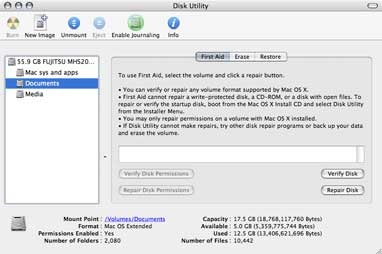
Mac OS Disk Utility
This is what a Disk Utility will normally allow you to do ...
Format / earase a hard drive
This will destroy all current data on a drive and create a new Disk Directory and should only be done when ...
- A drive is brand new and needs formatting (most drives come pre-formatted)
- Data has become badly corrupt and cannot be repaired
- You want to partition a drive
- You want to ensure that all data is gone for ever
Also known as ...
- Initialising
- Erasing
- Zeroing (all bits are turned to 0)
IMPORTANT NOTE: When you delete files from a drive you have not erased them, you have merely removed their entry in the disk directory and let the drive know it can use the space they occupy to save new files. More advanced disk utilities can recover these "deleted" files.
Repairing (FAT) disk directories
Repairing directories will re-build the list of the locations of all the files on the drive. This should be performed every 6 months or so or when a problem arises such as a file goes missing, or its icon disappears or it loses track of which application created it etc
Repair user permissions
On a multi-user system, access to files by different users can be controlled. Information on who can access what files is stored in files called "permissions" or similar. These files can be repaired separately to Disk Directories in Mac OS.
Repairing corrupt files
When a system reports a file as being corrupt (perhaps when you try to load it) there is little that you can do except delete it and either re-install or find your backup. You can try and repair the disk but don't hope for too much.
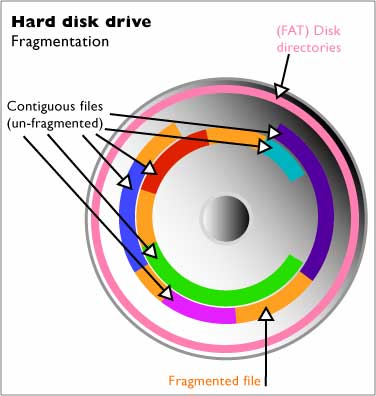 Fragmentation
A single file may be split into separate bits, each of which may be stored in different sectors and tracks on the surface of a disk. Drives do this to make the most of all available space. A file stored in a single physical location is said to be stored contiguously. A file stored in multiple locations is said to be fragmented. Understandably a fragmented file takes longer to be located, read and loaded into ram than a contiguously stored file.
De-fragmentation
When the files on a disc become very fragmented, hard drive performance may be compromised. Fragmentation effects the playback of time dependent files (audio and video) the most. A de-fragmentation program will copy and move the data to ensure that all files are stored contiguously (a single files data is stored in one physical location).
Mac OS de-fragments system drives when the system is inactive and asleep (usually during the night) so its worth leaving your computer on. Drives and partitions used for audio and video should be regularly de-fragmented with a specialist program.
Backing up
Although modern hard drives are remarkably robust and durable they will eventually start to corrupt data or completely fail. I reckon to rely on a drive for 3-4 years then relegate it to backup duties.
Therefore, it is essential to backup essential data either to a separate external hard drive chained to something (it won't get nicked if you computer does!) or onto DVD-R discs.
Related downloads
None at present
